








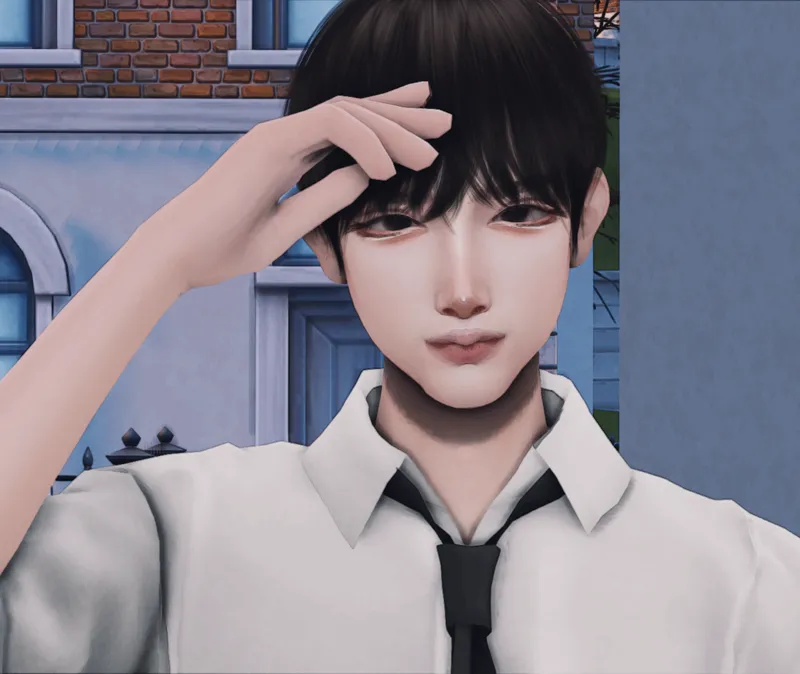

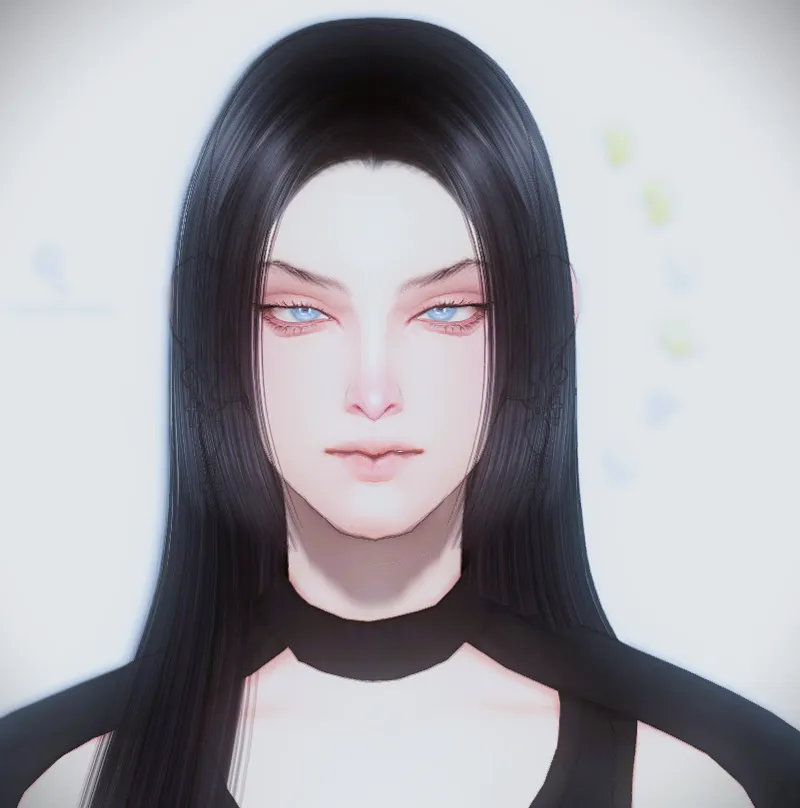

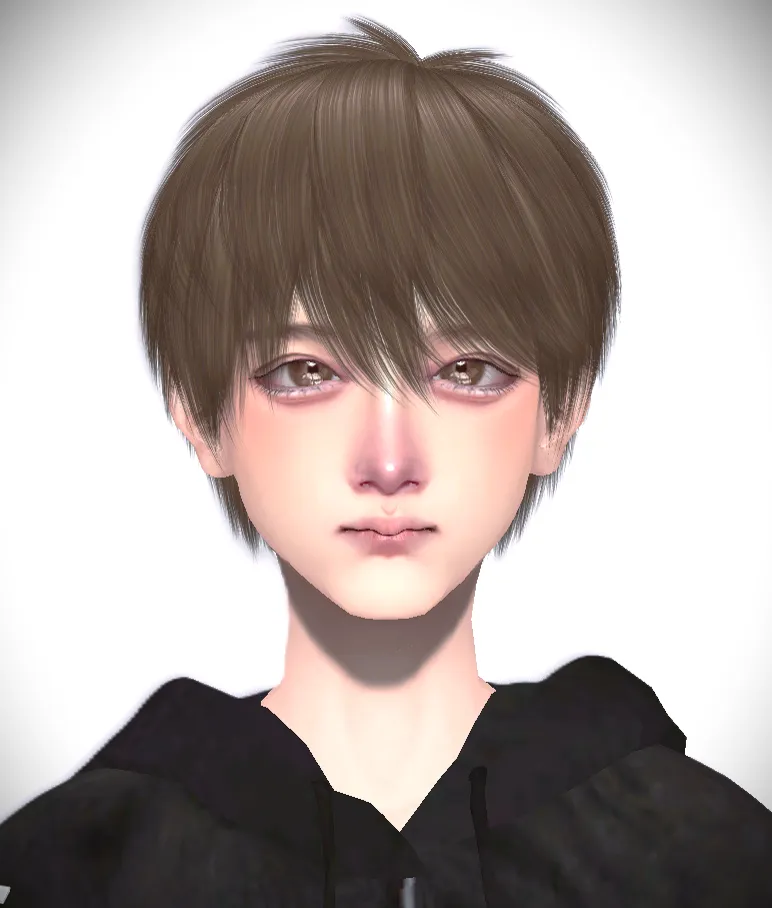


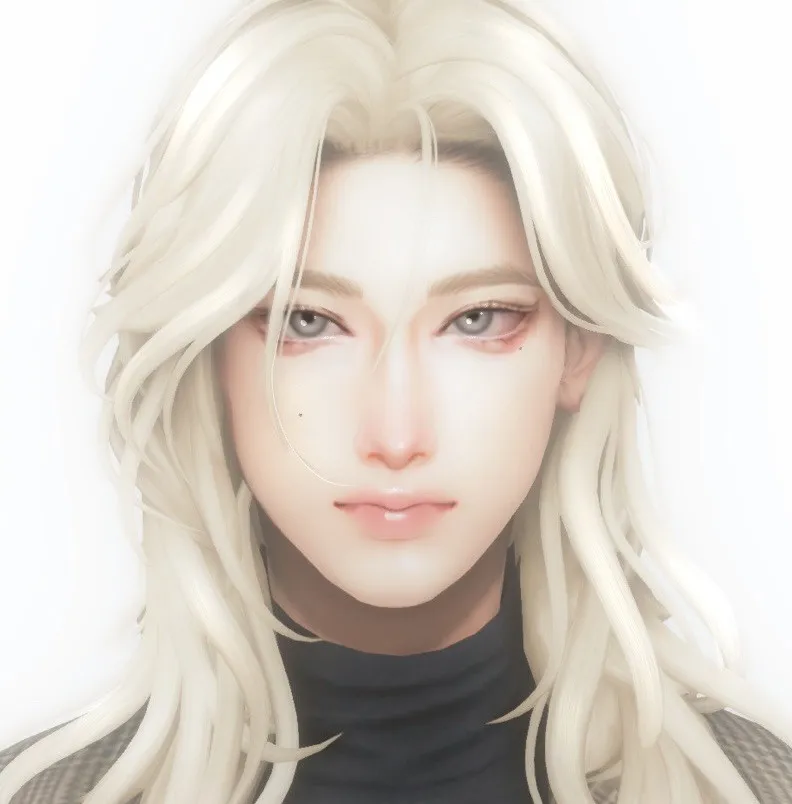
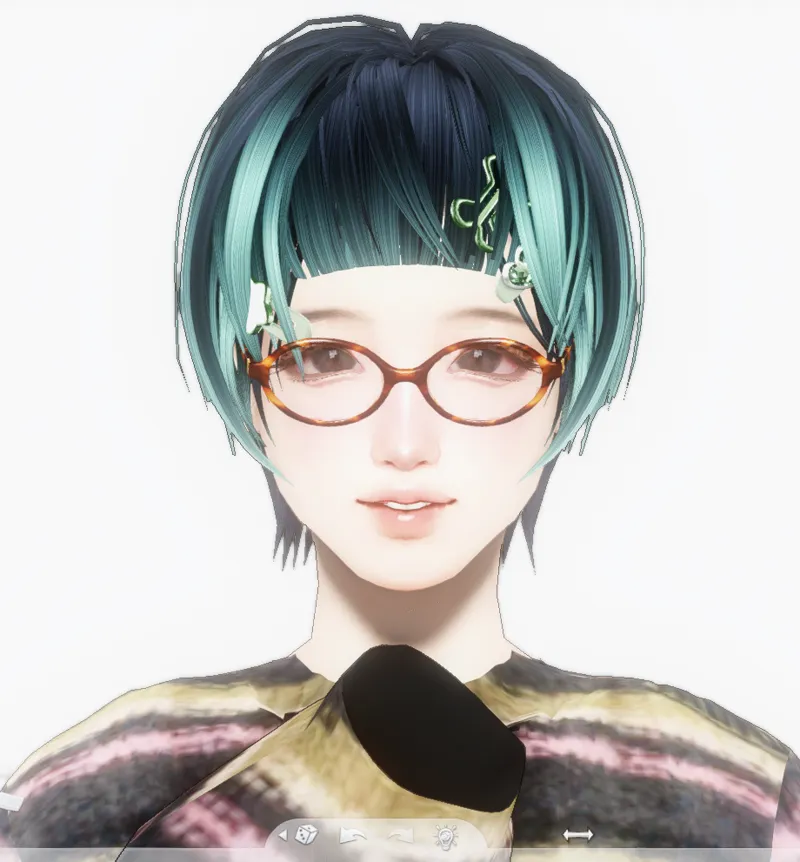


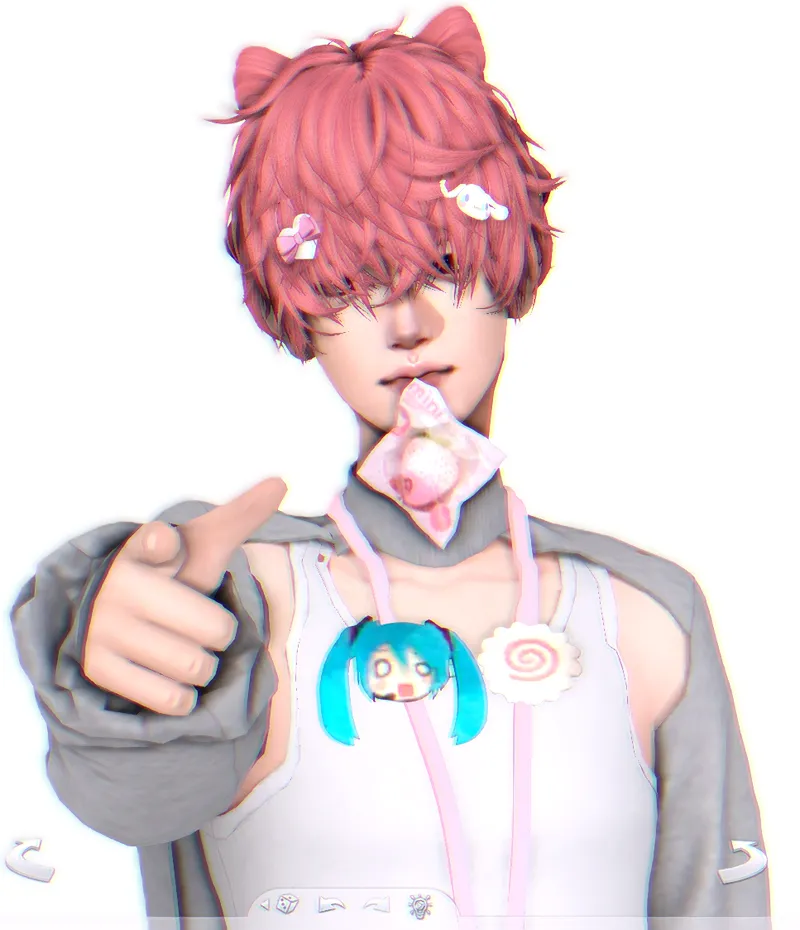

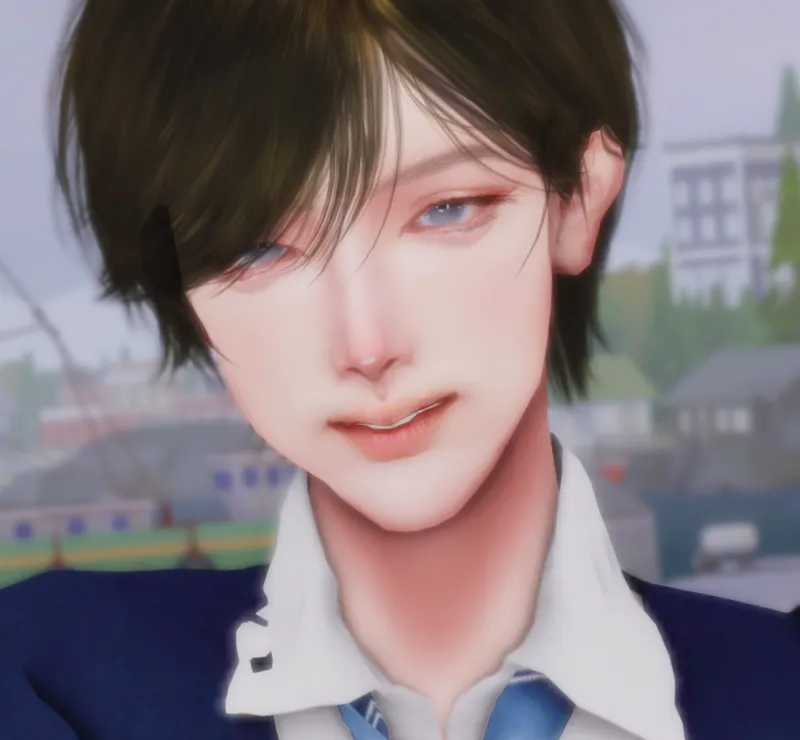

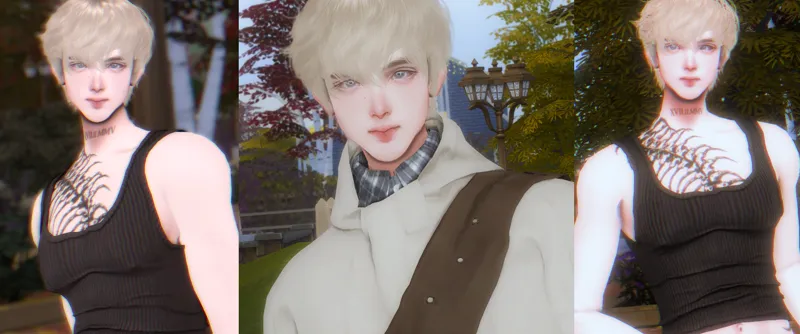








📢 Welcome & Important Info! 📢 💕
📌 GUIDE: How to Install Sims & Fix Graphic Settings (Please read if you are new!)
Hello everyone! If you are new to downloading custom Sims, please read this step-by-step guide carefully to ensure your Sim shows up in your game and looks like the preview pictures. ✨
📂 Preparation: How to Extract Your Files
1. For .zip Files (No extra software needed)
Windows: Right-click on the .zip file, select "Extract All...", choose your preferred destination folder, and click "Extract".
Mac: Simply double-click the .zip file, and it will automatically extract into a new folder.
2. For .rar Files (Requires extraction software) To open .rar files, you will need to download a free program like 7-Zip or WinRAR (for Windows) or The Unarchiver (for Mac).
Windows: Install your preferred extraction program. Right-click on the .rar file and select "Extract Here" (to unpack in the same location) or "Extract to [Folder Name]" (to place them neatly in a new folder).
Mac: Install The Unarchiver from the App Store. Right-click (or Control-click) the .rar file, select "Open With", and choose "The Unarchiver" to extract.
📥 PART 1: How to Install the Sim (Tray Files)
To make the Sim appear in your game, you need to place the files in the correct folder on your computer.
Move all the Tray files (these are the files that are NOT .package files) into this exact folder: 👉 Documents > Electronic Arts > The Sims 4 > Tray
Important Note: Please do not put Tray files into your Mods folder, as they will not work there!
🔍 PART 2: How to Find the Sim in Your Game
Open The Sims 4 and go to Gallery -> My Library.
On the left-hand menu, under the "Advanced" section, you MUST check the box that says 'Include Custom Content'. (If you skip this step, the Sim will not show up!)
You will now find the Sim model in your library.
🎥 Need a visual guide? Please watch this helpful video tutorial
❓ PART 3: Troubleshooting (Why does my Sim look different?)
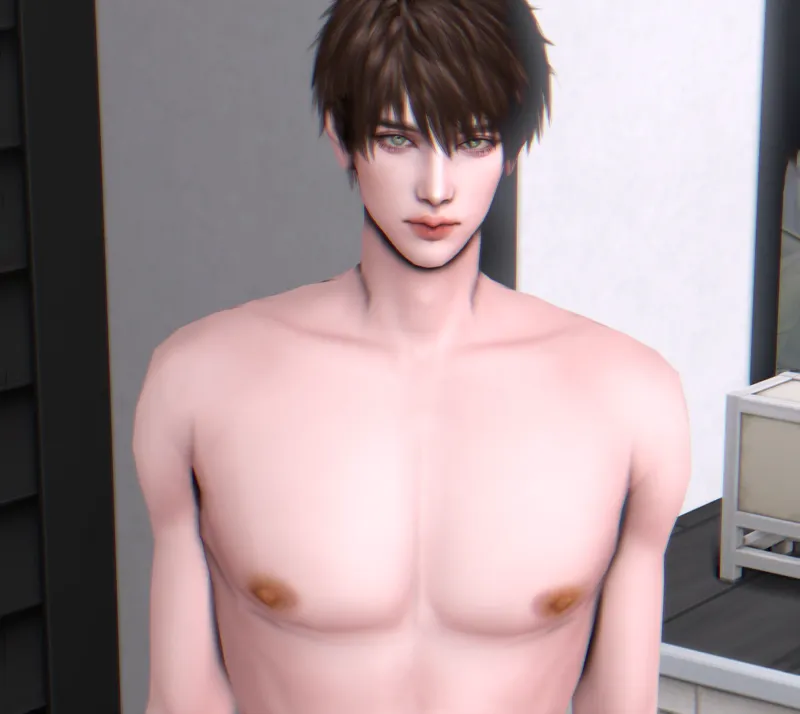
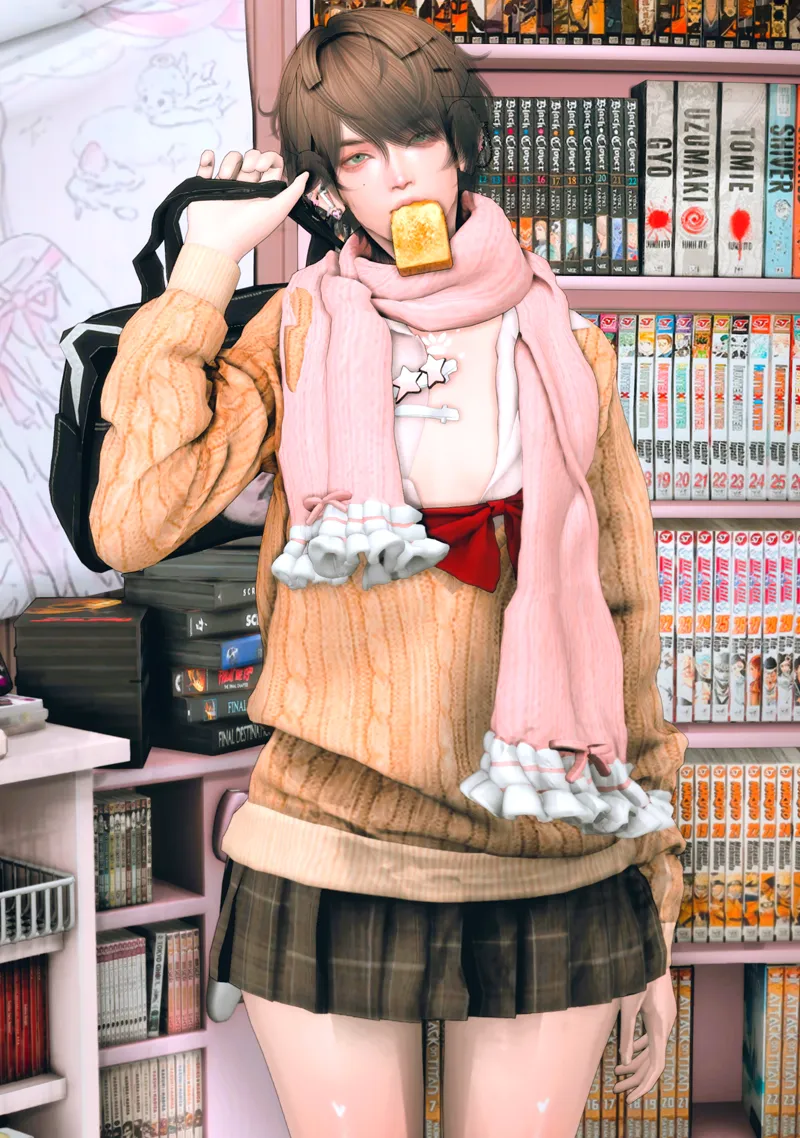
If your Sim appears in the game but their face or body looks slightly different from my preview photos, it is usually due to one of these two reasons:
Reason 1: Missing CC or Sliders You might have missed downloading some custom sliders or required items from the CC list I provided. Please double-check the list to ensure you have everything installed.
Reason 2: Your In-Game Graphic Settings (Very Common!) To make the Sim look perfectly detailed and beautiful, you may need to adjust your game settings. Please open your game, go to the Options Menu (the 3 dots) > Game Options > Graphics, and check the following:
Sims (Sim Quality): Set to 'High' or 'Very High' for maximum detail.
Uncompressed Sim Textures: Make sure this box is CHECKED (✔️). This is very important! It fixes blurry or pixelated skin and clothes, making the Sim look sharp.
Lighting: Set to 'High' or 'Very High' for realistic shadows and dimensions on the face.
Laptop Mode: Make sure this is UNCHECKED (❌) for the best graphic quality. (Only check this box if your computer is heavily lagging, but please note it will lower the CC quality).
Resolution: Set this to match your monitor's actual resolution.
I hope this guide helps you get the exact look of the model! Thank you so much for your support. ❤️
📢 For "Meaw Meaw" Tier II Supporters 📢 Thank you for your support!
You have full access to everything in the Meow tier.
Special Perk: Don't forget to DM me to request any 2 Character Presets from my Vault (Choose the ones you like).
👉 Browse the Character Vault here: here
My DM hours: 10:00 PM - 12:50 PM (Eastern Time, USA)
📢 Support Options: Membership vs. Shop 📢 If you want to support my work, there are two ways. Both are $3, but they work differently:
Membership ($3 / month): (Best Value)
You become a "Meaw Meaw" member (Tier II).
You can request 2 presets of your choice every month.
Best for those who want more characters.
Please note that your Tier II ($3) subscription includes additional Sim downloads. Kindly select your preferred Sims from here and let me know.
Shop Support ($3 / one-time):
You unlock 1 specific preset permanently.
Bonus: You will receive free lifetime updates for that specific character (if I edit them in the future).
Best for those who want just one specific look and its future updates.
˗ˏˋ ꜆꜄ ♡‧₊˚ ✧. ༘ ◞˚ₓ˗ˏˋ ꜆꜄ ♡‧₊˚ ✧. ༘ ◞˚ₓ˗ˏˋ ꜆꜄ ♡‧₊˚ ✧. ༘ ◞˚ₓ˗ˏˋ ꜆꜄ ♡‧₊˚ ✧. ༘ ◞˚ₓ
👀 My Portfolio: New to my page? You can see my character previews on my Pinterest.
Questions are always welcome on my blog.
Comments (2)
cuteness overload....does anybody know how to breathe?...omg their all so gorgeous...your "Link" Boy, came out so cute
sob, crying