


Wild Life - Graphics and Performance guide
Wild Life is being developed on Unreal Engine 5, the latest and most advanced version of the engine, which comes with increased hardware demands. Some gamers mistakenly believe that their older systems should still handle it, but the reality is that UE5 introduces cutting-edge features that require significantly more power, particularly in terms of CPU performance and VRAM.
Here's an overview of the basic requirements and recommendations to help you get the best possible experience. Stick to the end to get a guide how to use FSR2 to gain more then 20 fps on average boost your game performance.
------------------------------------------------------------------------------------------------------
VRAM
One of the biggest bottlenecks players face with this game is going to be the VRAM of their graphics cards.
Minimum VRAM: 8GB If your GPU has less than 8GB of VRAM, you’ll likely experience worse performance at even low settings.
Recommended VRAM: 10-12GB For medium to high settings at 1080p or 1440p, you should aim for at least 10GB of VRAM.
High-End VRAM: 12GB+ If you’re planning to play at 4K resolution or ultra settings, a high-end GPU with at least 12GB of VRAM is highly recommended.
CPU
UE5 is heavily dependent on the CPU rather than just the GPU. This is because UE5’s advanced features demand more from the processor to handle the geometry and real-time calculations. Having a modern multi-core CPU is important, but single-core clock speed also plays a crucial role.
Older quad-core CPUs (e.g., Intel i5 7th gen, AMD Ryzen 1st gen) will have significant bottlenecks. These CPUs struggle to keep up with the high data throughput with UE5 games.
For better experience, especially at higher settings, a CPU with at least 6 cores and strong single-core performance is recommended. Examples include Intel Core i5 10th gen or AMD Ryzen 5 3600 and above.
For the best experience, an 8-core (or higher) processor, like an Intel Core i7 12th gen or AMD Ryzen 7 5800X, will handle the game much better.
What about RAM, Storage?
While VRAM is critical, system memory (RAM) also plays some part, especially for multitasking and streaming: Minimum RAM: 16GB -> The absolute minimum for running UE5 games smoothly. Recommended RAM: 32GB -> For higher settings, smoother multitasking, and general future-proofing.
While Unreal Engine games can technically run on a traditional hard drive, the difference between an HDD and SSD is very noticeable. HDDs can cause slow loading times, even stuttering when assets load in real-time. Install the game on an quality SSD if possible. The faster load times and improved asset streaming will significantly improve your experience.
------------------------------------------------------------------------------------------------------
Now let's examine the ingame graphics settings and what you can do for more fps performance.
Resolution:
If you’re struggling for fps, lowering the resolution is your first aid to improve frame rates. Hopefully in the future the game can get support for DLSS to mitigate this need. Don't forget to keep the game in Fullscreen mode because the Windowed and Borderless can introduce some performance overhead.
FPS Limit:
120 FPS is fine if your hardware can handle it, but if you notice instability, set it to 60 FPS for a more consistent experience. Alternatively, you can try Unlimited FPS and use V-Sync to prevent screen tearing.
V-Sync:
Turn V-Sync off if you want reduced input latency, but turn it on to eliminate screen tearing if your FPS exceeds your monitor's refresh rate.
Graphics API:
DX12 is more optimized for newer hardware and visual fidelity features of UE5. If you experience stuttering or stability issues, switching to DX11 can provide more stable performance but with lesser visual fidelity. Alternatively, Vulkan is an option as well, but it's hard to recommend as the performance is hard to predict.
Graphics Quality:
Shadows, Effects, Foliage, Textures: These are the most demanding settings and should be reduced first if you're still struggling for more performance. Lowering View Distance is going to help the most in larger maps. Anti-Aliasing is always a performance hog so adjust that one based on your preference.
Global Illumination Method:
Lumen provides advanced dynamic lighting but is very taxing on performance. If you are having performance issues, set Global Illumination to Screen Space, or switch off completely at the cost of significant reduction of visuals.
Special Effects:
Depth of field, Volumetrics, Heat Distortion, Motion Blur are all preference based options. However, Virtual Shadow Maps and character Fur options can have a drastic impact on the performance, depending on how many shadows and kerpali characters are in the map. Try enabling the fur, but I would recommend switching off the virtual shadow maps.
------------------------------------------------------------------------------------------------------
With the basics out of the way, it's time to delve into some advanced ways how to handle graphics. As you may know, UE games can actually be customised by tweaking a specific file called Engine.ini
This file is a configuration file that allows you to adjust hidden settings in Unreal Engine games. These settings control everything from anti-aliasing and shadow rendering to texture streaming and screen scaling. Tinkering with these values can provide significant performance boosts, especially on lower-end systems or if you're aiming for smoother gameplay, but also supercharge visual fidelity if you are certain that your system can handle it (caution advised).
The file is located here:
C:\Users\<user-profile-name>\AppData\Local\WildLifeC\Saved\Config\Windows
Open the Engine.ini file with admin priviliges, here's where you need to input specific commands at the end of the file. The commands in the engine.ini file usually have a header name. Each header tells Unreal Engine which part of the engine the settings should apply to. If settings are placed under the wrong header, they may not be recognized or applied. Here are some of the most commonly used headers in Unreal Engine config files:
[Core.System] Used for core system settings, such as the directory paths for saved files and logs.
[SystemSettings] This is the general section for most rendering and performance-related settings. You can use it for tweaks related to graphics quality, textures, LODs, shadows, etc.
More specialised engine tweaks will need a special header name to properly execute the command tweak, so make sure to refer to the Unreal Engine Documentation for guide
https://dev.epicgames.com/documentation/en-us/unreal-engine/unreal-engine-5-5-documentation
------------------------------------------------------------------------------------------------------
Here are engine.ini tweaks you can try out in Wild Life:
The following commands need a header like this -> [SystemSettings]
r.Shadow.Virtual.DistantLightMode=0
Controls the shadow rendering mode for distant light sources.
0: Disables virtual shadows for distant lights (saves performance).
1: Enables virtual shadows for distant lights (better visuals, more performance-heavy).
r.StaticMeshLODDistanceScale=0.1
Adjusts how quickly level of detail (LOD) models transition based on distance. Lower values make objects switch to lower-quality models sooner, improving performance. Range: 0.1 - 2.0 (lower values reduce visual quality, higher values improve quality)
0.1: Aggressive LOD transitions for maximum performance.
1.0: Default LOD transitions.
2.0: Higher quality LOD transitions at further distances (lower performance).
r.Shadow.Virtual.UseFarShadowCulling=0
Controls whether shadows far away from the player are culled (not rendered).
0: Disables far shadow culling, keeping distant shadows visible (better visuals, but more performance demand).
1: Enables culling of far shadows, which can improve performance by reducing shadow rendering for distant objects.
r.Lumen.ScreenProbeGather.ShortRangeAO.ApplyDuringIntegration=1
Adjusts whether short-range ambient occlusion is applied during Lumen's screen probe gathering. Ambient Occlusion improves the depth and realism of lighting but can be performance-heavy.
0: Disables short-range AO (improves performance, but loses some shadow detail).
1: Enables short-range AO (better visual depth at the cost of performance).
r.TSR.History.ScreenPercentage=100
Adjusts the screen percentage used by Temporal Super Resolution (TSR). Higher values increase the rendering resolution for sharper images, but demand more from the GPU.
50: Low screen percentage (blurry, but improves performance).
100: Default (1:1 rendering).
150: Higher quality at the cost of more GPU resources.
200: Maximum quality but very performance-intensive.
r.AntiAliasingMethod=4
Chooses the type of anti-aliasing used to smooth out jagged edges in the game.
0: No anti-aliasing (best for performance, worst for visuals).
1: FXAA (Fast but lower quality).
2: Temporal AA (TAA, balances quality and performance).
3: MSAA (Higher quality but very GPU intensive).
4: TSR (Temporal Super Resolution, the most efficient method for quality/performance balance in UE5).
r.PostProcessAAQuality=6
Adjusts the quality of post-process anti-aliasing. Range: 0 - 6
0: Disables post-process AA for best performance.
3: Medium quality, balanced for performance.
6: Maximum AA quality for the best visuals.
r.MaxAnisotropy=16
Controls anisotropic filtering, which improves texture quality, especially at oblique angles.
1: Lowest quality (best performance).
8: Good balance of quality and performance.
16: Maximum quality, minimal performance cost on modern GPUs.
r.MaterialQualityLevel=1
Determines the quality of materials (textures, shading).
0: Low quality (faster performance, less detailed visuals).
1: Medium quality (good balance).
2: High quality (best visuals but requires more GPU power).
r.Streaming.MipBias=0
Controls the level of detail for streamed textures. Range: -3 to 5
-3: Highest texture quality (more VRAM usage).
0: Default.
2: Reduces texture quality for better performance on lower-end systems.
5: Lowest texture quality, best for low VRAM cards.
r.TextureStreaming=1
Enables or disables texture streaming.
0: Disables texture streaming, loading all textures in full (requires more VRAM but improves texture quality).
1: Enables dynamic texture streaming to save VRAM.
r.OneFrameThreadLag=1
Determines whether the game adds a one-frame delay for rendering, which can improve performance but increase input lag.
0: Disables one-frame lag (reduces input lag but can increase CPU/GPU load).
1: Enables one-frame lag (better performance, but slightly more input latency).
r.ShadowQuality=2
Adjusts the quality of shadows. Range: 0 - 5
0: Disables shadows (best performance).
2: Medium quality, reasonable performance balance.
5: Maximum quality shadows (very performance-heavy).
------------------------------------------------------------------------------------------------------
The following command uses this header -> [/Script/Engine.UserInterfaceSettings]
ApplicationScale=0.5
Controls the scale of the user interface. Lowering this value will shrink the UI. Range: 0.1 - 2.0 0.5: Half the size of the default UI (good for high resolutions like 4K). 1.0: Default size. 2.0: Double the default size (might be useful on extremely high-resolution displays).
------------------------------------------------------------------------------------------------------
AMD FidelityFX Super Resolution 2 (FSR2) in Wild Life
how to gain a significant boost in performance (~25 fps)
The following commands enable FSR2
Here's a detailed breakdown of the settings, which include various tweaks related to velocity output and AMD FidelityFX Super Resolution 2 (FSR2) in Unreal Engine. These settings influence motion blur, vertex deformation, and temporal upscaling, among other effects.
r.Velocity.ForceOutput=1
Forces velocity output for motion blur and Temporal Anti-Aliasing (TAA) even if it's not needed by any other features. Typically, velocity output is enabled only if features like motion blur are enabled.
Values: 0 (disable), 1 (enable)
Set to 0 if you don’t need motion blur or TAA.
r.BasePassOutputsVelocity=1
Forces velocity output from the base pass. This impacts performance as velocity is usually calculated later in the rendering pipeline.
Values: 0 (disable), 1 (enable)
For performance, you might set this to 0 unless you're optimizing for specific visual effects like motion blur or TAA.
r.BasePassForceOutputsVelocity=1
Ensures the base pass always outputs velocity, even when it's not strictly necessary. Useful for capturing motion on all objects, but costly.
Values: 0 (disable), 1 (enable)
Same as r.BasePassOutputsVelocity; consider disabling for performance unless needed for motion blur effects.
r.VelocityOutputPass=1
Forces the engine to use a separate pass for velocity calculations, which can provide better results but at a performance cost.
Values: 0 (disable), 1 (enable)
Test with 0 if you want to reduce render passes and improve performance.
r.Velocity.EnableVertexDeformation=1
Enables velocity output for deformed vertices, like those on animated meshes. Necessary for accurate motion blur on animated objects.
Values: 0 (disable), 1 (enable)
If your scene has no animated meshes or deformation, you can disable this by setting it to 0.
r.VertexDeformationOutputsVelocity=1
Similar to the previous setting, ensures vertex deformation contributes to velocity output for features like TAA and motion blur.
Values: 0 (disable), 1 (enable)
Disable if you don't need motion blur on deformed objects.
r.Velocity.EnableLandscapeGrass=1
Ensures landscape grass also outputs velocity, which can improve motion blur for large, grass-covered scenes.
Values: 0 (disable), 1 (enable)
Set to 0 if landscape grass is not a significant feature in your scene or if you want to save performance.
r.FidelityFX.FSR2.ForceLandscapeHISMMobility=1
Forces Landscape HISM (Hierarchical Instanced Static Meshes) to be treated as movable for FSR2.
Values: 0 (disable), 1 (enable)
Keep enabled for better FSR2 upscaling in dynamic landscapes; disable for static landscapes to improve performance.
r.FidelityFX.FSR2.AutoExposure=0
Disables FSR2’s auto-exposure adjustment. This gives you manual control over exposure.
Values: 0 (manual), 1 (enable auto-exposure)
Set to 1 if you prefer automatic exposure control; leave at 0 for manual tuning.
r.FidelityFX.FSR2.ForceVertexDeformationOutputsVelocity=1
Forces FSR2 to account for vertex deformations when calculating motion blur and temporal upscaling.
Values: 0 (disable), 1 (enable)
Enable if vertex deformation is significant in your scene; otherwise, consider disabling.
r.FidelityFX.FSR2.HistoryFormat=0
Defines the format for FSR2’s history buffer. A lower value means lower quality but better performance.
Values: Likely 0 (low quality), 1 (higher quality)
You can increase this value for better quality, but it might cost performance.
r.FidelityFX.FSR2.ReactiveMaskRoughnessScale=0
Adjusts how roughness affects FSR2's reactive mask, which determines where sharpness adjustments are applied.
Values: 0 to 1, where 1 makes roughness have more impact.
Increase this to improve image sharpness in areas with high roughness, or keep at 0 for smoother results.
r.FidelityFX.FSR2.AdjustMipBias=1
Automatically adjusts the mipmap bias to improve visual quality when upscaling.
Values: 0 (disable), 1 (enable)
Set to 1 for better texture clarity when using FSR2.
r.FidelityFX.FSR2.DeDither=1
Enables FSR2’s de-dithering, which can improve visual quality in areas where dithering is present.
Values: 0 (disable), 1 (enable)
Keep enabled for better quality.
r.FidelityFX.FSR2.ReactiveMaskTranslucencyLumaBias=0 / r.FidelityFX.FSR2.ReactiveMaskTranslucencyBias=0
These settings affect how translucency is handled in FSR2’s reactive mask. Higher values could improve sharpness in translucent areas.
Values: 0 to 1
Increase these values if translucent materials look blurry after upscaling.
r.FidelityFX.FSR2.ReactiveHistoryTranslucencyBias=0 / r.FidelityFX.FSR2.ReactiveHistoryTranslucencyLumaBias=0
Similar to the above, these settings control translucency's impact on the reactive mask in FSR2's temporal history buffer.
Values: 0 to 1
Increase to improve quality at the cost of performance.
r.FidelityFX.FSR2.QualityMode=1
Sets the quality mode for FSR2.
Values:
0: Ultra Performance
1: Performance
2: Balanced
3: Quality
Set to 0 for maximum performance, or 3 for the best visual quality.
r.FidelityFX.FSR2.Sharpness=1.0
Adjusts the sharpness applied by FSR2.
Values: 0.0 (no sharpness) to 2.0 (max sharpness)
You can fine-tune this value based on your preference for image sharpness.
r.FidelityFX.FSR2.UseNativeDX12=0 / r.FidelityFX.FSR2.UseNativeVulkan=1
Enables FSR2 to use native DirectX 12 (DX12) or Vulkan for upscaling.
Values: 0 (disable), 1 (enable)
Enable the one relevant to the API your game is using (DX12 or Vulkan). For DX12, set UseNativeDX12 to 1 and UseNativeVulkan to 0.
r.FidelityFX.FSR2.Enabled=True
This simply enables FSR2 in the game for temporal upscaling.
Values: True (enable), False (disable)
If you want to disable FSR2 and all it's settings above, use value False.
------------------------------------------------------------------------------------------------------
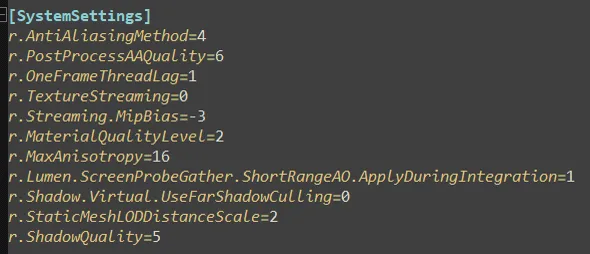
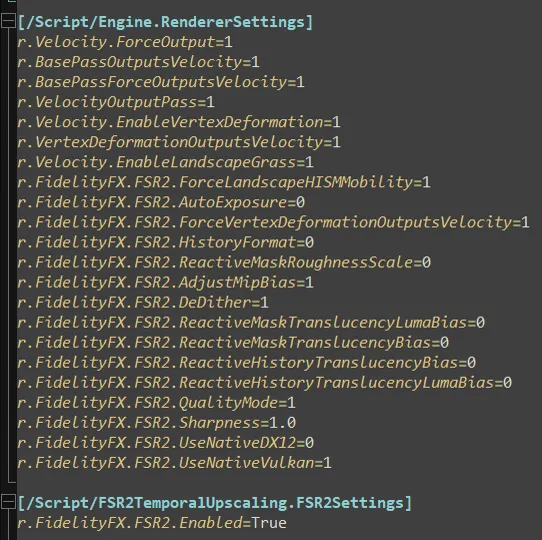
RECAP OF THE ENGINE.INI MODIFICATIONS
(with my personal used values, edit those to your preferences)
[/Script/Engine.UserInterfaceSettings]
ApplicationScale=0.5
[SystemSettings]
r.AntiAliasingMethod=4
r.PostProcessAAQuality=6
r.OneFrameThreadLag=1
r.TextureStreaming=0
r.Streaming.MipBias=-3
r.MaterialQualityLevel=2
r.MaxAnisotropy=16
r.Lumen.ScreenProbeGather.ShortRangeAO.ApplyDuringIntegration=1
r.Shadow.Virtual.UseFarShadowCulling=0
r.StaticMeshLODDistanceScale=2
r.ShadowQuality=5
[/Script/Engine.RendererSettings]
r.Velocity.ForceOutput=1
r.BasePassOutputsVelocity=1
r.BasePassForceOutputsVelocity=1
r.VelocityOutputPass=1
r.Velocity.EnableVertexDeformation=1
r.VertexDeformationOutputsVelocity=1
r.Velocity.EnableLandscapeGrass=1
r.FidelityFX.FSR2.ForceLandscapeHISMMobility=1
r.FidelityFX.FSR2.AutoExposure=0
r.FidelityFX.FSR2.ForceVertexDeformationOutputsVelocity=1
r.FidelityFX.FSR2.HistoryFormat=0
r.FidelityFX.FSR2.ReactiveMaskRoughnessScale=0
r.FidelityFX.FSR2.AdjustMipBias=1
r.FidelityFX.FSR2.DeDither=1
r.FidelityFX.FSR2.ReactiveMaskTranslucencyLumaBias=0
r.FidelityFX.FSR2.ReactiveMaskTranslucencyBias=0
r.FidelityFX.FSR2.ReactiveHistoryTranslucencyBias=0
r.FidelityFX.FSR2.ReactiveHistoryTranslucencyLumaBias=0
r.FidelityFX.FSR2.QualityMode=1
r.FidelityFX.FSR2.Sharpness=1.0
r.FidelityFX.FSR2.UseNativeDX12=0
r.FidelityFX.FSR2.UseNativeVulkan=1
[/Script/FSR2TemporalUpscaling.FSR2Settings]
r.FidelityFX.FSR2.Enabled=True